> ## Documentation Index
> Fetch the complete documentation index at: https://vastai-80aa3a82-ltxv2-serverless.mintlify.site/llms.txt
> Use this file to discover all available pages before exploring further.
# Huggingface TGI with LLama3
This is a guide on how to setup and expose an API for Llama3 Text Generation.
>
## 1) Choose The Huggingface LLama3 TGI API Template From the Recommended Section
Login to your Vast account on the [console](https://cloud.vast.ai)
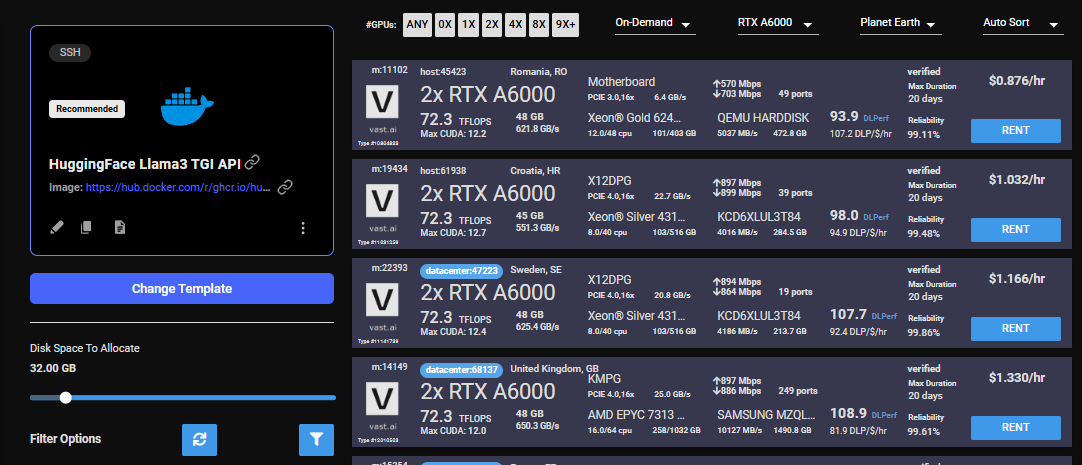
Select the [HuggingFace Llama3 TGI API](https://cloud.vast.ai/?template_id=906891f677fb36f21662a92e6092b5fc) template by clicking the link provider
For this template we will be using the meta-llama/Meta-Llama-3-8B-Instruct model, and the TGI 2.0.4 from Huggingface
Templates encapsulate all the information required to run an application with the autoscaler, including machine parameters, docker image, and environment variables.
For this template, the only requirement is that you have your own Huggingface access token. You will also need to apply to have access to Llama3 on huggingface in order to access this gated repository.
The template comes with some filters that are minimum requirements for TGI to run effectively. This includes but is not limited to a disk space requirement of 100GB, and a gpu ram requirement of at least 16GB.
After selecting the template your screen should look like this:
 ## 2) Modifying the Template
>
Once you have selected the template, you will need to then add in your huggingface token and click the 'Select & Save' button.
You can add your huggingface token with the rest of the docker run options.

This is the only modification you will need to make on this template.
You can then press 'Select & Save' to get ready to launch your instance.
## 3) Rent a GPU
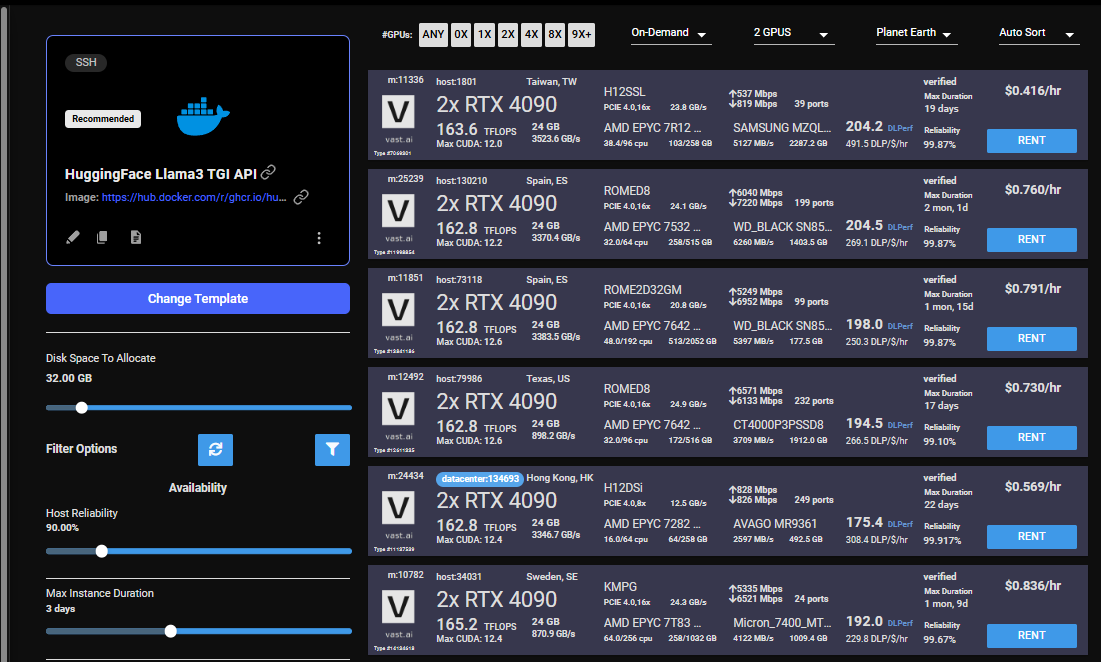
Once you have selected the template, you can then choose to rent a GPU of your choice from either the search page or the CLI/API.
For someone just getting started I recommend either an Nvidia RTX 4090, or an A5000.
## 4) Monitor Your Instance
Once you rent a GPU your instance will being spinning up on the Instances page.
You know the API will be ready when your instance looks like this:

Once your instance is ready you will need to find where your API is exposed. Go to the IP & Config by pressing the blue button on the top of the instance card. You can see the networking configuration here.
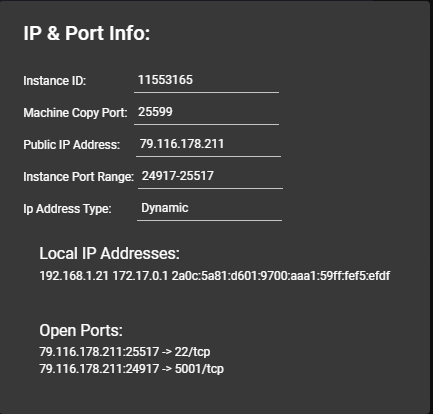
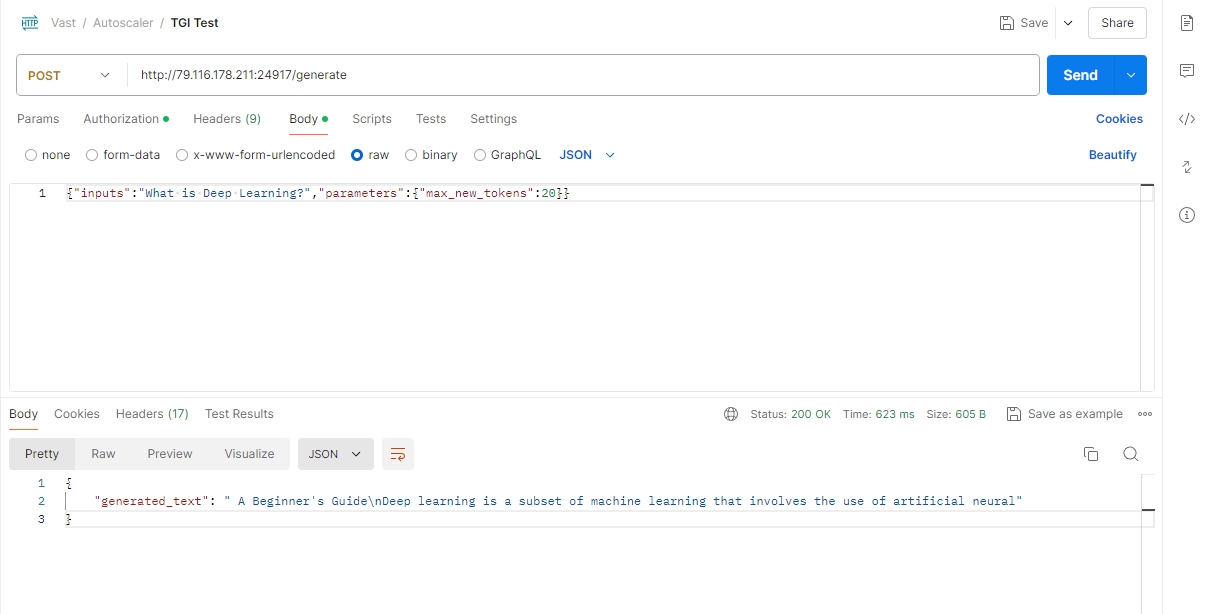
After opening the IP & Port Config you should see a forwarded port from 5001, this is where your API resides. To hit TGI you can use the '/generate' endpoint on that port.
Here is an example:
## 5) Congratulations!
You now have a running instance with an API that is using TGI loaded up with Llama3 8B!
# Serverless/Autoscaler Guide
As you use TGI you may want to scale up to higher loads. We currently offer a serverless version of the Huggingface
TGI via a template built to run with the Autoscaler. See [Getting Started with Autoscaler](/documentation/serverless/getting-started-with-serverless)
## 2) Modifying the Template
>
Once you have selected the template, you will need to then add in your huggingface token and click the 'Select & Save' button.
You can add your huggingface token with the rest of the docker run options.

This is the only modification you will need to make on this template.
You can then press 'Select & Save' to get ready to launch your instance.
## 3) Rent a GPU
Once you have selected the template, you can then choose to rent a GPU of your choice from either the search page or the CLI/API.
For someone just getting started I recommend either an Nvidia RTX 4090, or an A5000.

## 4) Monitor Your Instance
Once you rent a GPU your instance will being spinning up on the Instances page.
You know the API will be ready when your instance looks like this:

Once your instance is ready you will need to find where your API is exposed. Go to the IP & Config by pressing the blue button on the top of the instance card. You can see the networking configuration here.

After opening the IP & Port Config you should see a forwarded port from 5001, this is where your API resides. To hit TGI you can use the '/generate' endpoint on that port.
Here is an example:

## 5) Congratulations!
You now have a running instance with an API that is using TGI loaded up with Llama3 8B!
# Serverless/Autoscaler Guide
As you use TGI you may want to scale up to higher loads. We currently offer a serverless version of the Huggingface
TGI via a template built to run with the Autoscaler. See [Getting Started with Autoscaler](/documentation/serverless/getting-started-with-serverless)