> ## Documentation Index
> Fetch the complete documentation index at: https://vastai-80aa3a82-ltxv2-serverless.mintlify.site/llms.txt
> Use this file to discover all available pages before exploring further.
# Managing Templates
## Updating a Template
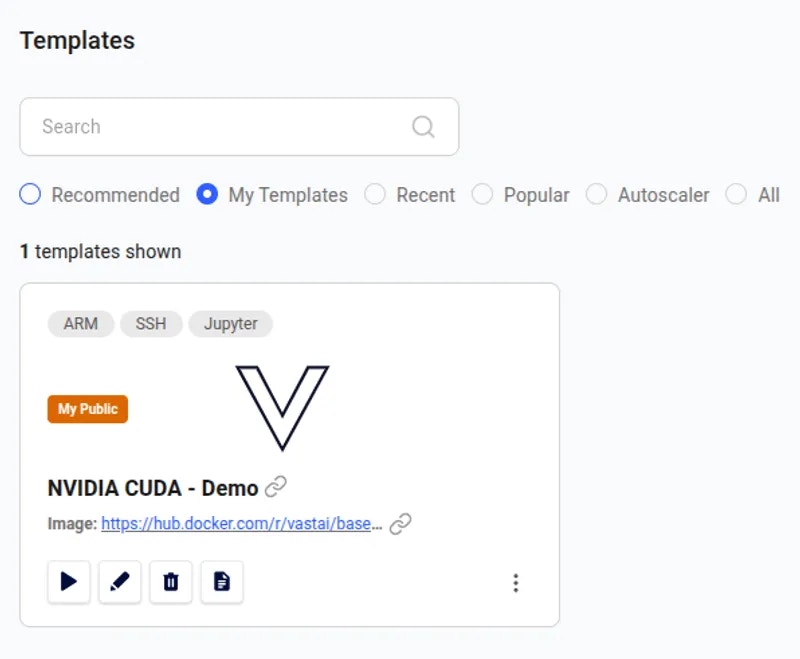
If you want to make changes to a template you previously saved, simply navigate back to the templates page and select 'My Templates'. Here you'll be able to make your changes by clicking the pencil icon.
 ## Sharing a Template
It's really easy to share your template with other users. We have two special links you can use and both include your referral code so you can earn if new users sign up - Find more about that [here](/documentation/reference/referral-program).
To share, click the three dots icon in the bottom right of the template card.
## Sharing a Template
It's really easy to share your template with other users. We have two special links you can use and both include your referral code so you can earn if new users sign up - Find more about that [here](/documentation/reference/referral-program).
To share, click the three dots icon in the bottom right of the template card.
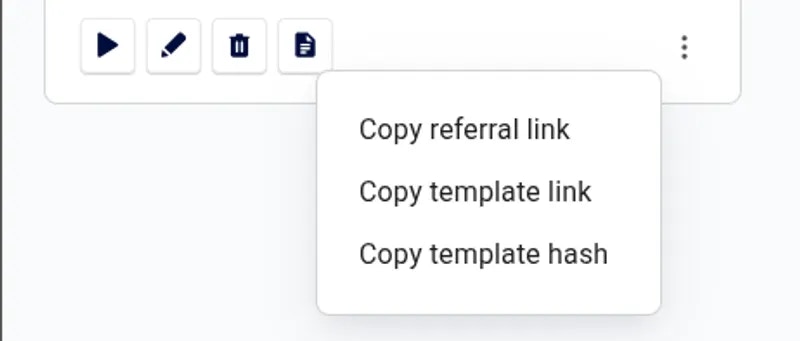 ### Copy referral link
This will copy a link that contains your referral ID, creator ID and the template name. It will always point to the most recent template you created with this name - Really useful if you want people clicking the link to always get the most recent version.
### Copy template link
This will copy a link containing your referral ID and the template hash ID. It points to this specific template at this point in time.
Templates all have a unique hash after every save. This is useful as it allows you to find a previous version if you have tracked the hash ID, but for sharing you probably want the referral link above.
Remember to add a comprehensive Readme to your template if you're going to share it. This will help users to get started easily.
## Troubleshooting
* If your image is built for a different CPU architecture than your Vast machine, then it won't work. You can try to find a machine with the required CPU architecture using our GUI or [CLI](/cli/get-started).
* If your image requires a higher CUDA version, then look for a machine with a higher Max CUDA version. The Max CUDA version can be found on the instance card.
* If your image is built to run jupyter, then try running it on a port different than 8080.
* If you are having issues using ssh launch mode, add your public key to \~/.authorized\_keys, install openssh, start openssh when the container starts, and forward the ssh server's port.
### Copy referral link
This will copy a link that contains your referral ID, creator ID and the template name. It will always point to the most recent template you created with this name - Really useful if you want people clicking the link to always get the most recent version.
### Copy template link
This will copy a link containing your referral ID and the template hash ID. It points to this specific template at this point in time.
Templates all have a unique hash after every save. This is useful as it allows you to find a previous version if you have tracked the hash ID, but for sharing you probably want the referral link above.
Remember to add a comprehensive Readme to your template if you're going to share it. This will help users to get started easily.
## Troubleshooting
* If your image is built for a different CPU architecture than your Vast machine, then it won't work. You can try to find a machine with the required CPU architecture using our GUI or [CLI](/cli/get-started).
* If your image requires a higher CUDA version, then look for a machine with a higher Max CUDA version. The Max CUDA version can be found on the instance card.
* If your image is built to run jupyter, then try running it on a port different than 8080.
* If you are having issues using ssh launch mode, add your public key to \~/.authorized\_keys, install openssh, start openssh when the container starts, and forward the ssh server's port.