> ## Documentation Index
> Fetch the complete documentation index at: https://vastai-80aa3a82-ltxv2-serverless.mintlify.site/llms.txt
> Use this file to discover all available pages before exploring further.
# Data Movement
> Learn how to move data on Vast.ai using Cloud Sync, instance-to-instance transfers, CLI copy, VM migration, scp, and other efficient methods.
Vast.ai currently supports several built-in mechanisms to copy data to/from instance storage (in addition to all of the standard linux/unix options available inside the instance):
For docker based instances:
1. Instance\<->Instance and Instance\<->Local copy using the `vastai copy` CLI command
2. Instance\<->Instance copy in the GUI instance control panel or `vastai copy` CLI command
3. Cloud Sync using the GUI instance control panel or `vastai cloud copy` CLI command
For VM instances:
1. Instance\<->Instance migration through the `vastai vm copy` CLI command or the GUI instance control panel
These are in addition to standard ssh based copy protocols such as scp or sftp which you can run over ssh, built in jupyter http copy, and any other linux tools you can run inside the instance yourself (rclone, rsync, bittorent, [insync](https://www.insynchq.com/headless-for-linux) etc).
The 3 built-in methods discussed here are unique in that they offer ways to copy data to/from a *stopped instance*, with some constraints. Copying data between instances accrues internet bandwidth usage charges (with prices varying across providers), unless the copy is between two instances on the same machine or local network, in which case there is no bandwidth charge.
## Cloud Sync
The Cloud Sync feature allows you to copy data to/from instance local storage and several cloud storage providers (S3, gdrive, backblaze, etc) - even when the instance is stopped.
### Using the GUI
Vast currently supports Dropbox, Amazon S3 and Backblaze cloud storage providers.
First you will need to connect to the cloud provider on the [account page](https://cloud.vast.ai/account/) and then use the cloud copy button on the instance to start the copy operation.

See [Cloud Sync](/documentation/instances/cloud-sync) for more details.
### Using the CLI
You can also access this feature using the `vastai cloud copy` [CLI command](/cli/commands#cloud-copy).
## Instance \<-> Instance copy
Instance to instance copy allows moving data directly between the local storage of two instances.
If the two instances are on the same machine or the same local network (same provider and location) then the copy can run at faster local network storage speeds and there is no internet transit cost.
### Using the GUI
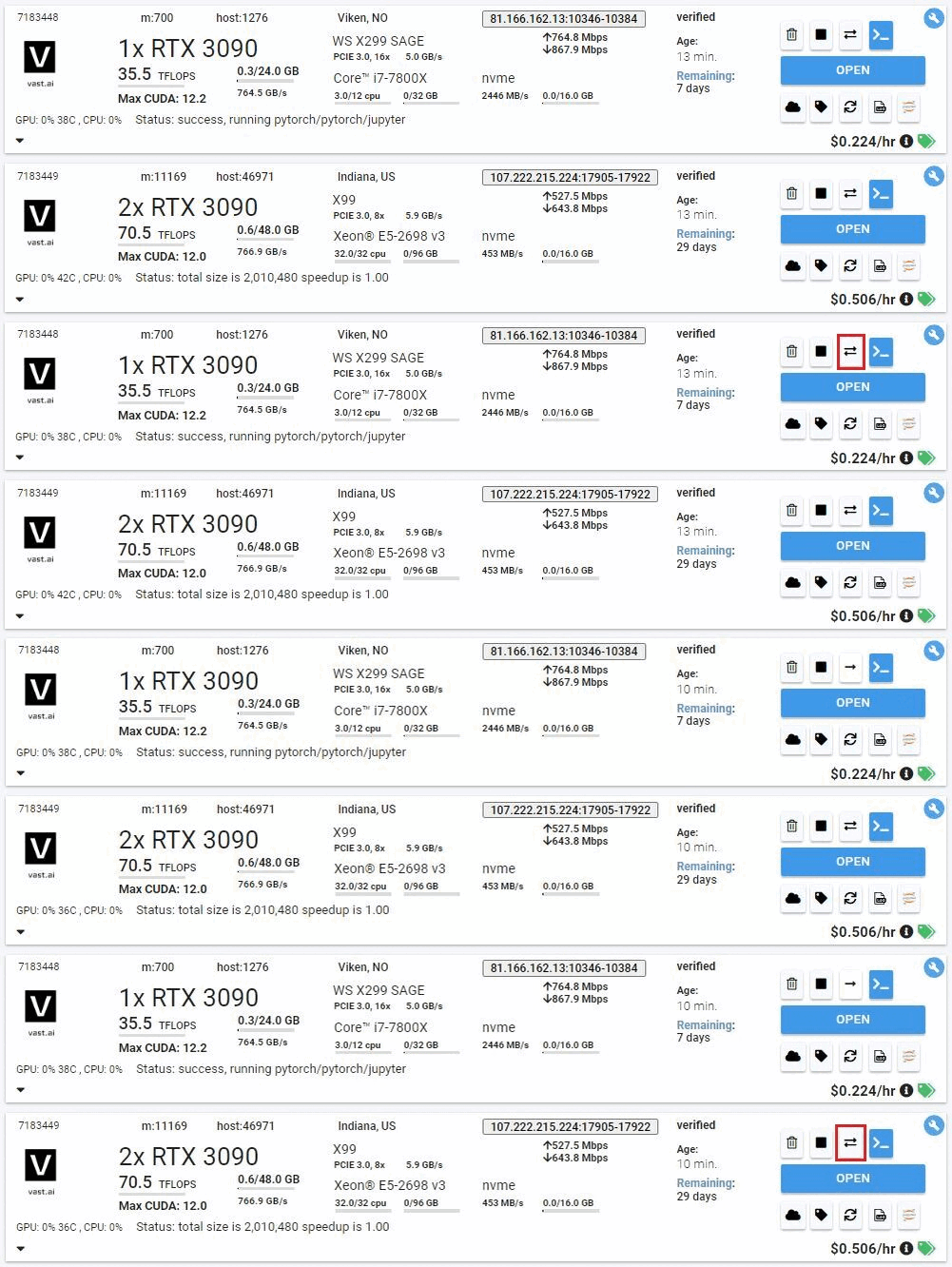
You can use the copy buttons to copy data between two instances. Instances can be stopped/inactive. See complete [Constraints](./#constraints) below.
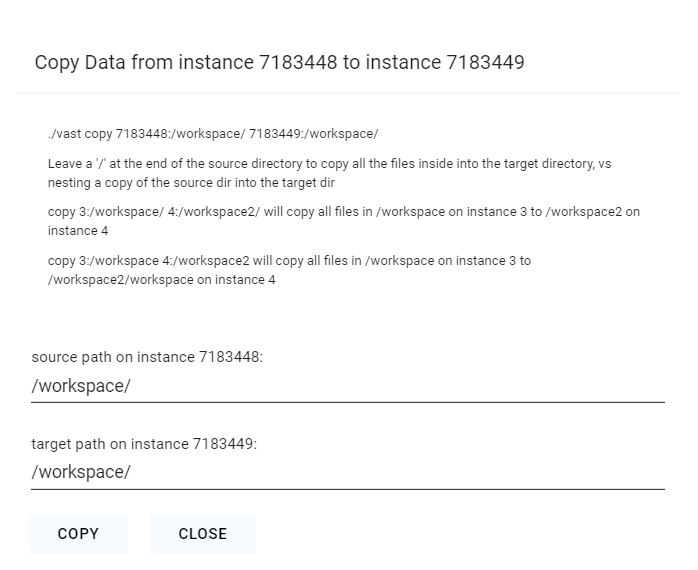
Click the copy button on the source instance and then on the destination instance to bring up the copy dialogue. For docker-based instances you will see the following folder dialogue.
Pick the folders where you want to copy to/from. Leave a '/' at the end of the source directory to copy all the files inside into the target directory, vs nesting a copy of the source dir into the target dir.
**WARNING**\\
You should not copy to /root or / as a destination directory, as this can mess
up the permissions on your instance ssh folder, breaking future copy
operations (as they use ssh authentication).
After clicking the copy button, give it 5-10 seconds to start. The status messages will display as the copy operation begins.
For VM based instances you will see a confirmation dialog instead; the copy will copy your entire source instance to the destination machine. The destination instance's disk will be replaced by the contents of the source instance.
### Using the CLI
You can also access this feature using the `vastai copy` [CLI command](/cli/commands#copy).
## CLI Copy Command
You can use the [CLI](/cli/get-started) copy command to copy from/to directories on a remote instance and your local machine, or to copy data between two remote instances.
The copy command uses rsync and is generally fast and efficient, subject to single link upload/download constraints.
The copy command supports multiple location formats:
* `[instance_id:]path` - Legacy format (still supported)
* `C.instance_id:path` - Container copy format
* `cloud_service:path` - Cloud service format
* `cloud_service.cloud_service_id:path` - Cloud service with ID
* `local:path` - Explicit local path
Examples:
```text Text theme={null}
vastai copy 6003036:/workspace/ 6003038:/workspace/
vastai copy C.11824:/data/test local:data/test
vastai copy local:data/test C.11824:/data/test
vastai copy drive:/folder/file.txt C.6003036:/workspace/
vastai copy s3.101:/data/ C.6003036:/workspace/
```
The first example copy syncs all files from the absolute directory '/workspace' on instance 6003036 to the directory '/workspace' on instance 6003038.
The second example copy syncs files from container 11824 to the local machine using structured syntax.
The third example copy syncs files from local to container 11824 using structured syntax.
The fourth example copy syncs files from Google Drive to an instance.
The fifth example copy syncs files from S3 bucket with id 101 to an instance.
## CLI Copy Command (VMs)
You can use the [CLI](/cli/get-started) vm copy command to copy your entire VM from one instance to another. The destination VM's disk will be replaced with the contents of the source machine.
Example:
```text Text theme={null}
vastai vm copy 1241241 1241245
```
This will transfer the contents of 1241241 to 1241245.
### Constraints
For VM-based instances, the destination instance must be stopped during the transfer.
### Performance
If your data is already stored in the cloud (S3, gdrive, etc) then you should naturally use the appropriate linux CLI or commands to download and upload data directly, or you could use the [Cloud Sync](/documentation/instances/cloud-sync) feature.
This generally will be one the fastest methods for moving large quantities of data, as it can fully saturate a large number of download links.
If you are using multiple instances with significant data movement requirements you will want to use high bandwidth cloud storage to avoid any single machine bottlenecks.
If you launched a Jupyter notebook instance, you can use its upload feature, but this has a file size limit and can be slow.
You can also use standard Linux tools like scp, ftp, rclone, or rsync to move data.
For moving code and smaller files scp is fast enough and convenient.
However, be warned that the default ssh connection uses a proxy and can be slow for large transfers (direct ssh recommended).
Instance to instance copy is generally as fast as other methods, and can be much faster (and cheaper) for moving data between instances on the same datacenter.
## SCP
If you launched an ssh instance, you can copy files using scp. The proxy ssh connection can be slow (in terms of latency and bandwidth).
Thus we recommend only using scp over the proxy ssh connection for smaller transfers (less than 1 GB).
For larger inbound transfers, using the direct ssh connection is recommended.
Downloading from a cloud data store using wget or curl can have much higher performance.
The relevant scp command syntax is:
```text Text theme={null}
scp -P PORT LOCAL_FILE root@IPADDR:/REMOTEDIR
```
The PORT and IPADDR fields must match those from the ssh command (note the use of -P for port instead of -p !). The "Connect" button on the instance will give you these fields in the form:
```text Text theme={null}
ssh -p PORT root@IPADDR -L 8080:localhost:8080
```
For example, if Connect gives you this:
```text Text theme={null}
ssh -p 7417 root@52.204.230.7 -L 8080:localhost:8080
```
You could use scp to upload a local file called "myfile.tar.gz" to a remote folder called "mydir" like so:
```text Text theme={null}
scp -P 7417 myfile.tar.gz root@52.204.230.7:/mydir
```
## Common Questions
### How do you recommend I move data from an existing instance?
The [Cloud Sync feature](/documentation/instances/cloud-sync) will allow you to move data to and from instances easily.
The main benefit is that you can move data around while the machine is inactive.
Currently, we support Google Drive, S3, Dropbox, and Backblaze
### Help, I want to move my data but I forgot what directory it's in!
For moving your data, by either using our Cloud Sync or Instance Copy features, you will need to define the path from where the data you are transferring is coming from and where it is to be put. If you don't remember where the data is you are trying to transfer, you can use our [CLI execute command](/cli/commands#execute) to access your instance when your instance access is limited.
### What if I don't remember the file names on my inactive instance, but I want to copy certain files?
Use the vast CLI, run the `execute` command to display the file tree. This will help you browse the available files and identify the names or paths you need. More about the execute command you can find [here](https://cloud.vast.ai/cli/).
```
vastai execute INSTANCE_ID 'ls -l'
```
### How I can free up disk space on an inactive instance?
When an instance is inactive (stopped, exited, cannot be started), you can still manage its file system and remove unneeded data using vast CLI. This is useful if you want to free up disk space without starting the instance.
Check disk usage:
```
vastai execute INSTANCE_ID 'du -d1 -h'
```
Delete unnecessary files:
```
vastai execute INSTANCE_ID 'rm file_name.txt'
```